Introduction
If you have already submitted a cutting job through Edge Craft, the next important step is knowing how to check its progress. Edge Craft Track Order helps customers follow their sheet cutting order online using a tracking ID and phone number, so they can review the current status of the job without repeated manual follow-up.
This is especially useful for customers ordering MDF cutting, plywood cutting, edge banding, or other furniture panel work through Edge Craft. Instead of relying only on messages or phone calls, you can use the Track Order system to view your cutting order status in a more organized and professional way.
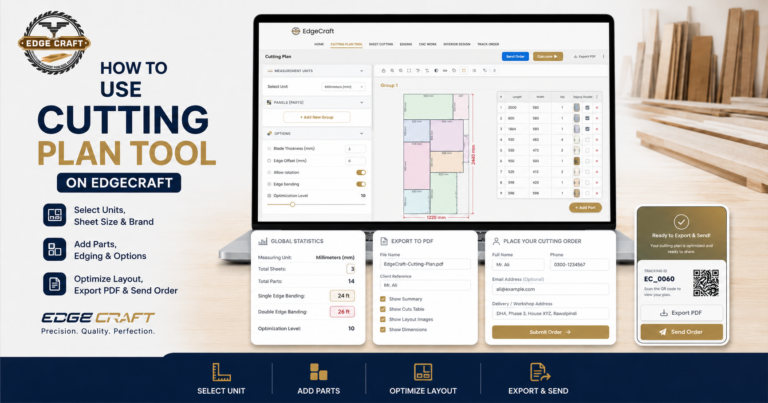
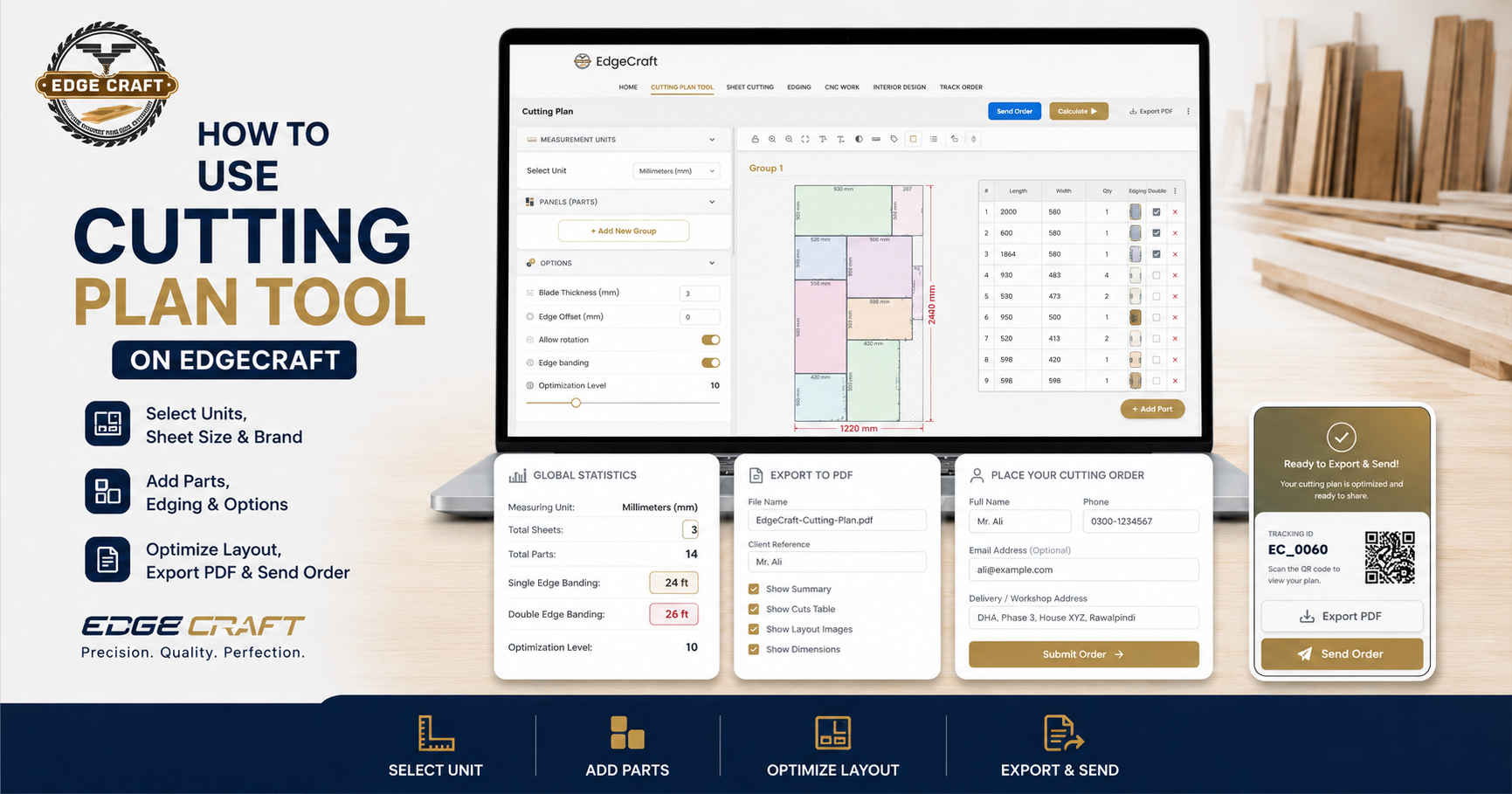
If you also use the Edge Craft Cutting Plan Tool, the tracking system fits naturally into the same workflow. First, you prepare and submit the job. Then, after the order is received, you can track your order online using the provided tracking details.
New to the tool? Read our complete guide on how to use Edge Craft Cutting Plan before placing your sheet cutting order.
When do you get a tracking ID?
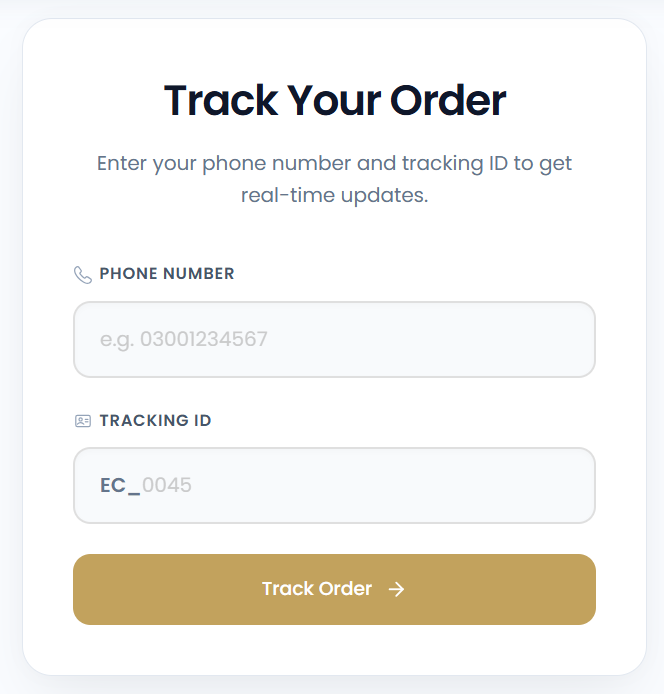
You receive a tracking ID after successfully submitting your order. In the current workflow, the order confirmation screen displays a unique tracking ID and also provides a QR code that can be scanned later to open the order with the tracking details already loaded.
That means the tracking process starts as soon as the order is placed. Instead of searching through messages or re-entering project details manually, you can keep the tracking ID or scan the QR code whenever you want to check the order again.
Step 1: Open the Edge Craft Track Order page
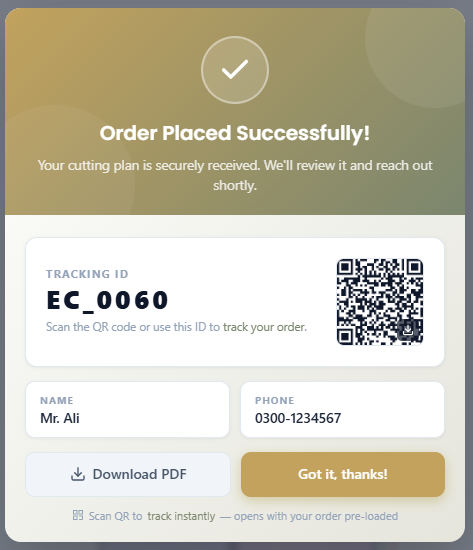
Start by opening the Edge Craft Track Order page from the website. Since Track Order is placed directly in the main site navigation, it is intended to be part of the normal customer journey, not a hidden support feature.
If you created your job through the Cutting Plan sheet optimization Tool, this is the page you use after submission when you want to check progress or confirm that the order is moving forward.
Step 2: Enter your phone number
The tracking form asks for your phone number first. Use the same number that was submitted with the original order. This helps connect the tracking request with the correct customer record and avoids confusion when multiple jobs may exist under similar names.
Always enter the number exactly as it was used during order submission. If the phone number does not match the original order details, the system may not pull the correct tracking result.
Step 3: Enter your tracking ID
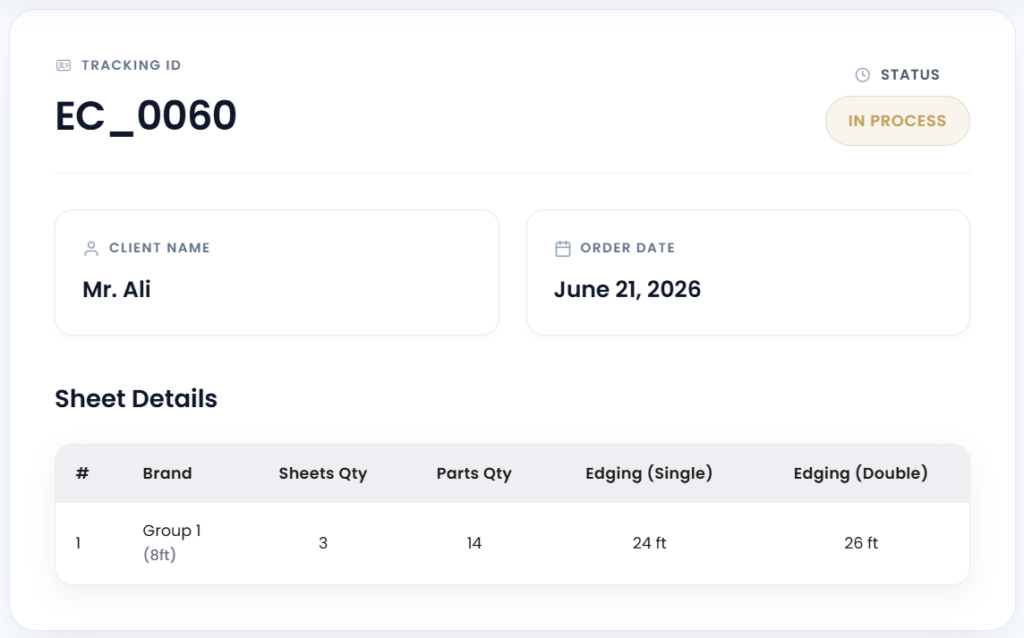
After entering the phone number, enter the tracking ID provided by Edge Craft. The sample tracking interface shows the tracking field in a format similar to EC_0045 placeholder, and the confirmation card example shows a completed order reference such as EC_0060.
This tracking ID is the main reference for checking your cutting order online. It links the customer details with the correct order record, status, and sheet information.
If you saved the QR code from the order confirmation screen, you may also be able to open the order directly by scanning it instead of typing the details manually.
Step 4: Click Track Order
Once the phone number and tracking ID are entered, click the Track Order button to load the order result.
At this stage, the goal is simple: confirm that the order has been received and view the current job status. For customers managing furniture work, cabinetry, wardrobes, kitchens, or interior panel jobs, this step reduces uncertainty and saves time.
Step 5: Review the order status
After the order loads, the status screen shows the main reference details of the job. Based on the current Edge Craft order-tracking interface, users can review the tracking ID, the current order status, the client name, and the order date.
One example status shown in the current interface is In Process, which clearly tells the customer that the job is moving through production rather than waiting in an unclear state.
This is where the tracking page becomes truly useful. It turns a simple order number into a readable status update that customers and workshop teams can both understand.
Step 6: Check the sheet details and edging summary
The order status screen also includes a Sheet Details table. In the current interface, this section shows information such as the group or brand, the total number of sheets, the total number of parts, and the edging summary.
This matters because many customers do not only want to know whether the order exists. They also want to confirm what kind of production data is attached to it. For a sheet cutting order, that usually means sheet quantity, part quantity, and edging requirements.
If you previously created the job using the Cutting Plan cutlist optimizer tool, this step helps connect the production order with the technical details that were originally submitted.
This is also helpful when your order includes sheet cutting services or edging services, because the tracking screen keeps the sheet quantity, parts quantity, and edging details connected with the submitted job.
Step 7: Use the PDF and QR code as backup references
The order confirmation screen currently includes both a Download PDF option and a QR code. This is a smart feature because it gives the customer two extra ways to preserve the order details.
The PDF helps when you need a documented copy of the order for workshop coordination, client communication, or internal recordkeeping. The QR code helps when you want instant access later without retyping the tracking ID.
For teams handling multiple furniture or panel jobs, these backup references can make follow-up much easier.
Why Edge Craft order tracking is useful
Order tracking is valuable because it closes the gap between digital planning and real production. Edge Craft already supports layout planning, PDF export, and online order submission through its Cutting Plan workflow. Adding a clear tracking step helps customers stay connected to the job after submission.
For furniture makers, contractors, and homeowners, this means less uncertainty. For workshop coordination, it means fewer repeated status calls and more organized follow-up. For production-driven jobs like MDF cutting, plywood cutting, laminated panel cutting, sheet cutting, and edge banding, that kind of visibility is a strong practical advantage.
Final thoughts
If you have already placed a cutting order with Edge Craft, the tracking page is the easiest way to check where the job currently stands. Enter your phone number, add your tracking ID, open the result, and review the order status and sheet details in one place.
For the best experience, keep your tracking ID saved after submission, download the order PDF if needed, and store the QR code so you can reopen the order quickly later.
If you have not created your job yet, start with the Edge Craft Cutting Plan Tool first, then submit the order and use Track Order as the next step in the workflow.
Have an Order Placed?
Start Tracking
For customers in Rawalpindi and Islamabad, the Edge Craft Track Order workflow is especially helpful after submitting a cutting plan, sheet cutting request, or edge banding job. Instead of repeatedly calling or sending WhatsApp messages for updates, customers can check their cutting order status online using their tracking ID, phone number, or QR code. This keeps the order details organized, including sheet quantity, parts quantity, edging requirements, order date, and current production status.
FAQs
How do I track my Edge Craft order?
Open the Track Order page, enter the same phone number used when placing the order, add your tracking ID, and submit the form to check the current order status.
Where can I find my tracking ID?
Your tracking ID is shown after a successful order submission. It appears on the confirmation screen and is tied to the order QR code for quick reuse later.
Can I track my sheet cutting order online?
Yes. Edge Craft’s tracking workflow is designed to help customers check the progress of their submitted cutting orders online.
What details can I see in the order status screen?
The tracking result may include the tracking ID, order status, client name, order date, and production-related details such as sheets quantity, parts quantity, and edging totals.
Can I use the QR code to open my order?
Yes. The confirmation screen includes a QR code that can be used as a quick access method for future order tracking.
What if I also need sheet cutting or edge banding services?
Track Order is part of the overall Edge Craft process. Customers can prepare the job through the Cutting Plan Tool, place the order, and then track it while sheet cutting or edge banding work moves through production.