Introduction
If you work with MDF, plywood, laminated boards or furniture panels, an accurate cut list can save material, reduce mistakes and make production much easier. Edge Craft Cutting Plan is a free online cutlist optimizer and sheet cutting tool that helps you enter panel sizes, calculate optimized layouts, review edge banding, export a PDF cutting plan and send your order directly to Edge Craft.
If you are using the tool for the first time, this guide will walk you through the full process in the same order most users naturally follow: choose the unit, add your panels, set your options, calculate the layout, review the results, export the PDF, and place the order.
After preparing your cutting plan, you can continue with Edge Craft’s mdf sheet cutting services, edging services, or track your submitted cutting order online using your order tracking ID or QR code.
What is Edge Craft Cutting Plan?
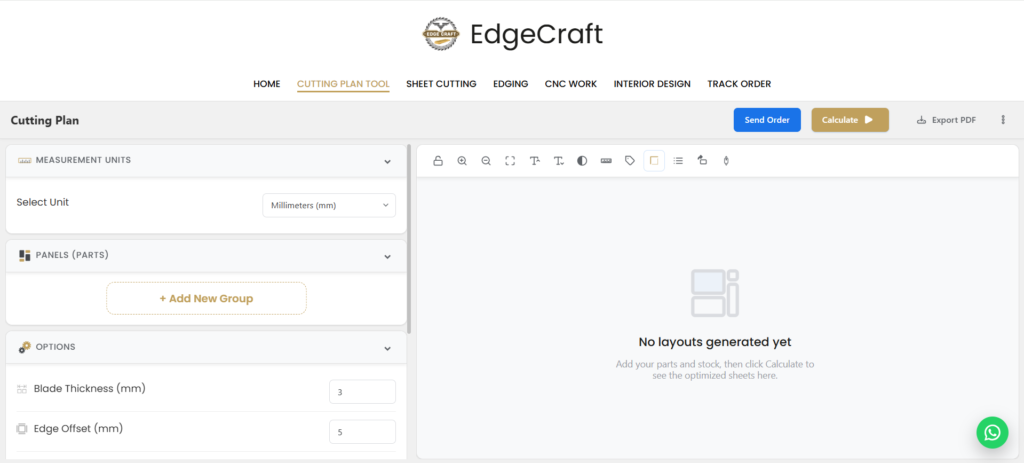
Edge Craft Cutting Plan is a digital sheet cutting optimizer on the Edge Craft website. The tool is designed to help you add your parts and stock, calculate optimized sheet layouts, and review global production details before you cut or place an order. The live interface includes dedicated controls for calculation, PDF export, ordering, and project management, while the site’s main product copy highlights layout optimization, grain direction handling, edging mapping, and edge-banding calculation.
This makes the tool practical for cabinet makers, carpenters, interior contractors, furniture workshops, and homeowners who want a cleaner way to organize a cut list before taking sheets to production.
Edge Craft Cutting Plan vs a Normal Cut List
A normal cut list is only a table of part sizes. It tells you the length, width and quantity of each panel, but it does not show how those parts should fit on a full sheet.
Edge Craft Cutting Plan works like a cutlist optimizer. It takes your part dimensions, sheet size, blade thickness, edge offset, grain direction and edging details, then creates an optimized sheet layout. This helps cabinet makers, carpenters, furniture workshops and DIY users understand how many sheets are required and how the parts can be arranged before cutting starts.
Step 1: Open the tool and select your measurement unit
Start by opening the Edge Craft Cutting Plan tool and setting the measurement unit you want to work in. The live page currently supports millimeters (mm), centimeters (cm), inches (in), inches-sooter (in-s), and feet (ft), so you can choose the unit that matches your drawings, workshop practice, or customer requirements. Using the correct unit from the beginning is important because every part dimension, sheet size, and optimization result depends on it.
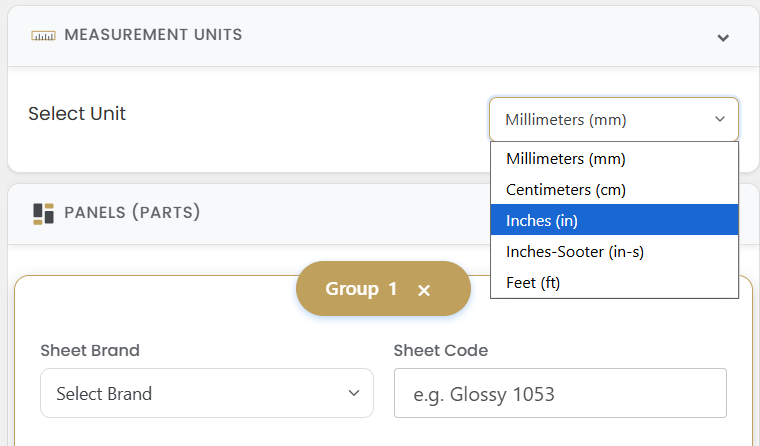
For most sheet-cutting work in Pakistan, millimeters are usually the easiest format because they align well with workshop measurements, machine settings, and board specifications. If your sketches or client references are already in inches or feet, you can stay in those units instead of converting everything manually.
Step 2: Create a parts group and define your stock
After selecting the unit, move to the Panels (Parts) section and create a group for your project. Edge Craft’s interface is group-based, which is useful when you want to organize one project into logical sections such as carcass parts, shutters, drawers, upper cabinets, base cabinets, or wardrobe sections. The page itself instructs users to add their parts and stock before calculating the layout.
In your current app setup, the group area also lets users define the stock they are working with. That is the right place to keep each set of parts tied to the correct sheet size or material setup. If you are working on a large project, separating parts into clean groups will make the final layout easier to review and easier to explain to the client or workshop team.
Step 3: Enter every panel part correctly
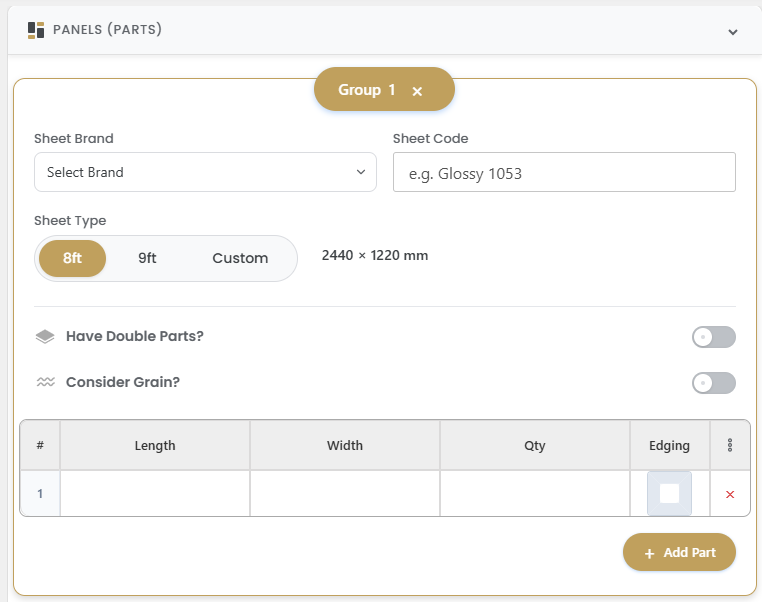
Once your group is ready, add each part row one by one. The core data you need to enter is the length, width, and quantity of each panel. The interface is built around these panel values, and the generated PDF confirms that Edge Craft converts those entries into a structured cutting list and grouped layouts.
Take your time here. A cutting optimizer is only as good as the data you enter. If one measurement is wrong, the entire layout can still calculate correctly from a software perspective but still fail in real production. That is why accurate part entry is the most important step in the full workflow.
Where needed, also define the edging requirement for the part. Edge Craft’s site specifically highlights edge mapping and edge-banding calculation as part of the tool’s value, and the sample export shows separate totals for single edge banding and double edge banding in the summary.
For best results, treat this step like preparing a professional MDF cutting list or plywood cutting list. Enter each panel carefully, including repeated quantities, edging sides and double parts where needed. The more accurate your input is, the better the cutlist optimizer can arrange your parts on the available sheet size.
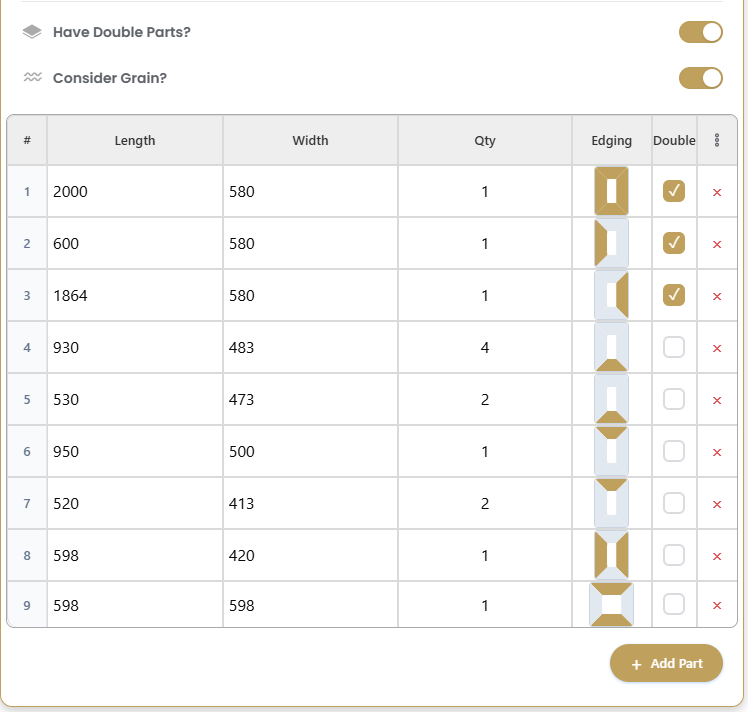
If grain direction matters for your sheet material, keep that in mind while entering parts. Edge Craft’s own product copy mentions grain direction as part of the detailed layout workflow, which is especially important for visible shutters, wardrobe panels, side facias, and decorative boards where the panel direction affects the final appearance.
Step 4: Adjust the cutting options before calculating
The Options section is where you fine-tune how the optimizer will work. The live tool currently includes controls for Blade Thickness, Edge Offset, Allow rotation, Edge banding, and Optimization Level. These settings directly affect how closely the digital layout matches workshop reality.
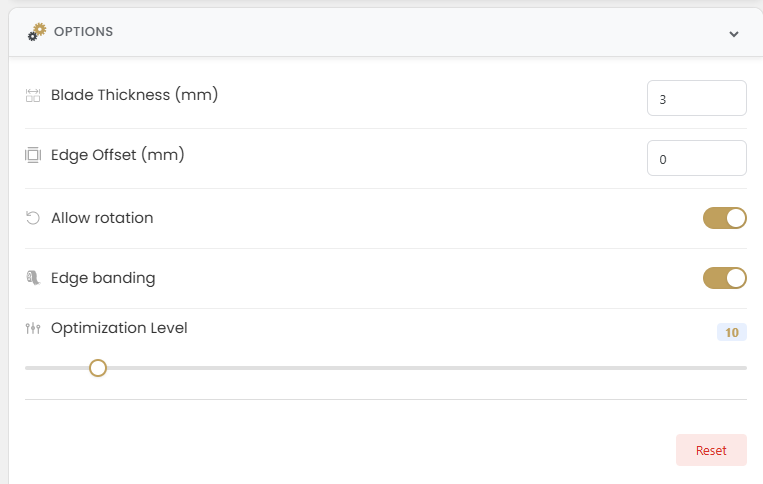
Blade thickness is important because every machine cut consumes material. Edge offset matters when you want to leave a small tolerance for trimming or finishing. Allow rotation can improve material usage when the part orientation is flexible, while edge-banding settings help the plan reflect finishing needs more accurately. Optimization level matters when you want the tool to work harder to find an efficient layout. In short, this section bridges the gap between a simple cut list and a more production-ready cutting plan.
If you are unsure about the best settings, start with sensible defaults, calculate once, review the result, and then run the plan again with a different option if needed. That approach is often faster than trying to perfect every setting before seeing the first layout.
Step 5: Click Calculate and review the optimized sheet layout
After your parts and options are ready, click Calculate. The interface is designed to generate optimized sheets in the main workspace, and the page supports Single View, Scroll View, and Grid View for reviewing the result. The main site also describes the tool as a layout optimizer focused on better sheet efficiency and cleaner planning.
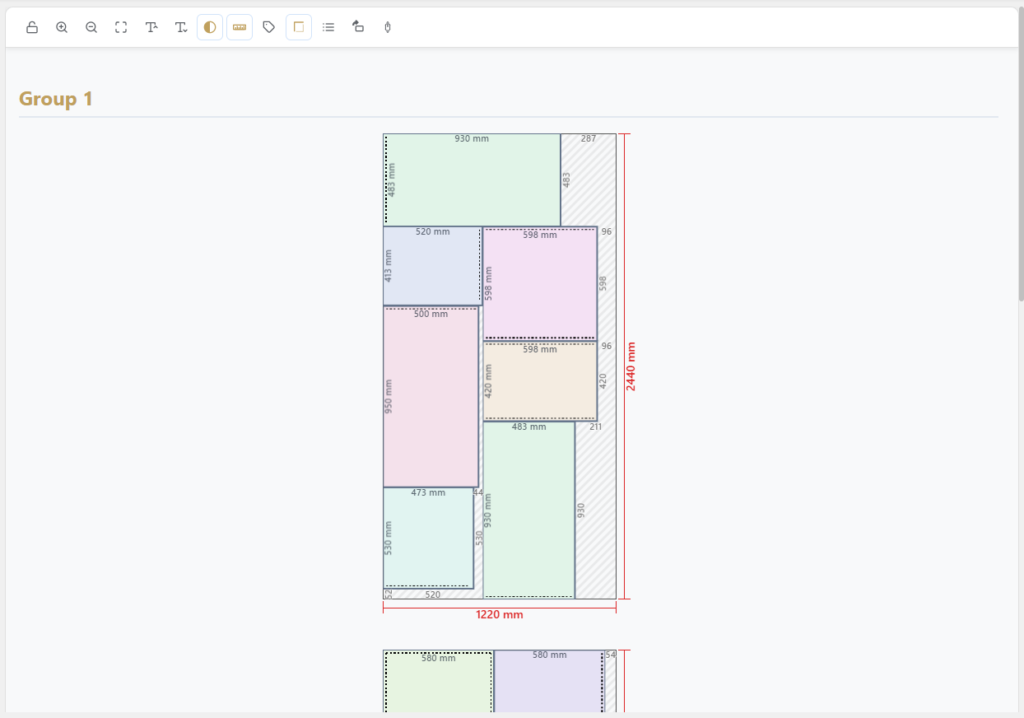
The exported sample PDF shows exactly what this stage is meant to produce: a summary page followed by individual sheet-layout pages for the generated stock. In your uploaded sample, the output uses 2440 × 1220 mm sheets and breaks the job into multiple optimized layouts, each with part positions and dimensions shown on the board.
When reviewing the layout, check the following carefully: whether all important parts are present, whether the sheet breakdown looks practical for cutting, whether the grain-sensitive parts are oriented correctly, and whether the remaining waste areas make sense. Optimization is not only about getting fewer sheets; it is also about getting a layout that is realistic to produce on the floor.
Step 6: Read the global statistics before exporting
One of the most useful parts of the live tool is the Global Statistics section. The interface currently displays Measuring Unit, Total Sheets, Total cuts, Total Edge Banding, Blade Thickness, Edge Offset, Optimization Level, and Unable to fit parts. This allows you to evaluate the full job in one glance before you move to production or client approval.
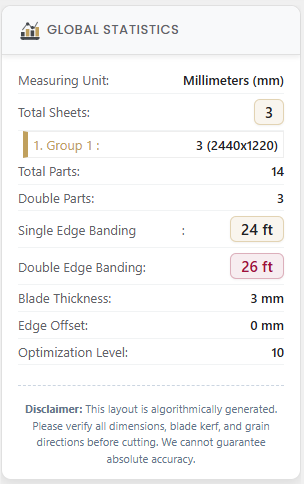
The sample PDF confirms how useful this summary can be in practice. In your uploaded example, the summary page includes the client reference, measuring unit, total sheets, total parts, single edge banding, double edge banding, blade thickness, edge offset, and the grouped cutting list. That kind of summary is exactly what helps a workshop verify the plan quickly before physical cutting starts.
If any part does not fit, or if the sheet count feels too high, go back and adjust your entries or settings before you export.
Step 7: Export the cutting plan as a PDF
Once you are satisfied with the result, click Export PDF. That feature is built directly into the live interface, and your sample export confirms that Edge Craft can produce a clean multi-page document suitable for workshop handling or customer review.
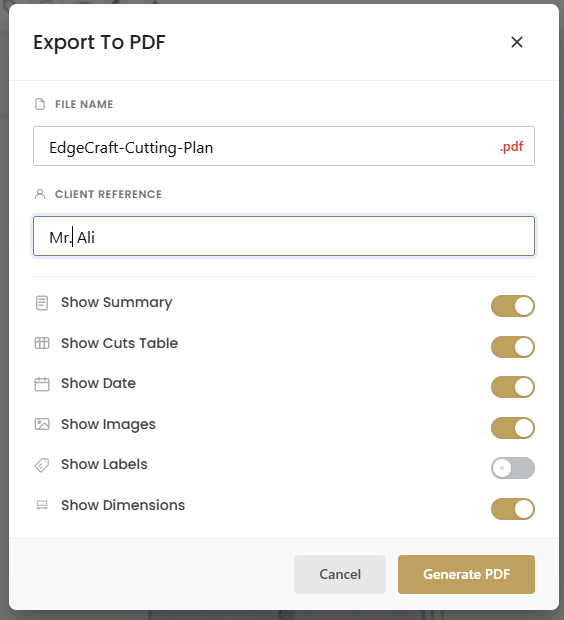
A good cutting-plan PDF is useful because it creates a fixed reference for everyone involved in the job. Instead of rechecking the live screen every time, the workshop can use the exported document as the agreed version of the cutting plan. In the current Edge Craft workflow, the export can serve both as an internal production document and as a customer-facing record of what will be cut.
If you use client references in your projects, make sure the exported file clearly identifies the job before you share it.
Step 8: Send your job to Edge Craft
If you want Edge Craft to process the job, use the Send Order button. The live page includes a built-in order form with fields for Full Name, Email, Phone, and Address, which makes the cutting plan go beyond just planning and into actual job submission. Edge Craft’s own process page explains the broader service flow as: plan and optimize, place the order or visit the workshop, confirm the details, and then process and deliver the work.
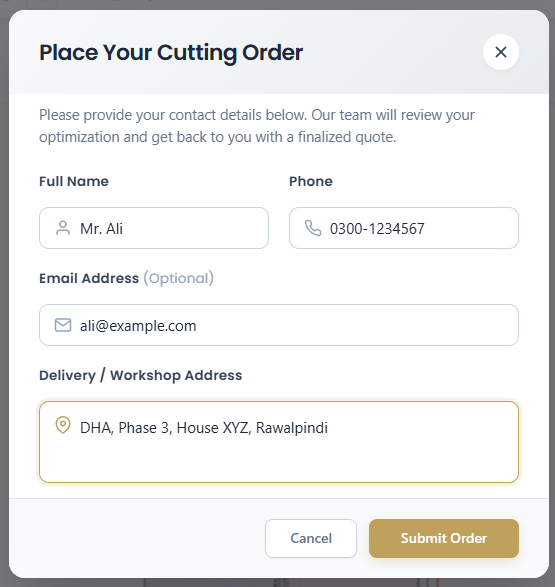
This is especially useful if you want Edge Craft to handle professional sheet cutting, edging, or related production work after the layout is approved. It shortens the gap between design planning and actual workshop execution.
Step 9: Verify everything before physical cutting begins
No optimizer replaces final human checking. The sample Edge Craft PDF includes a clear disclaimer stating that the plans are for informational and planning purposes, that perfect accuracy cannot be guaranteed in all conditions, and that the operator must verify measurements, grain directions, and edge-banding offsets before starting physical cuts.
That is the right way to use any cutting plan: first as a smart planning tool, then as a reviewed production reference. Always check dimensions twice, especially for grain-sensitive parts, mirrored sets, finished fronts, and customer-critical visible pieces.
Step 10:Track Your Cutting Order Online
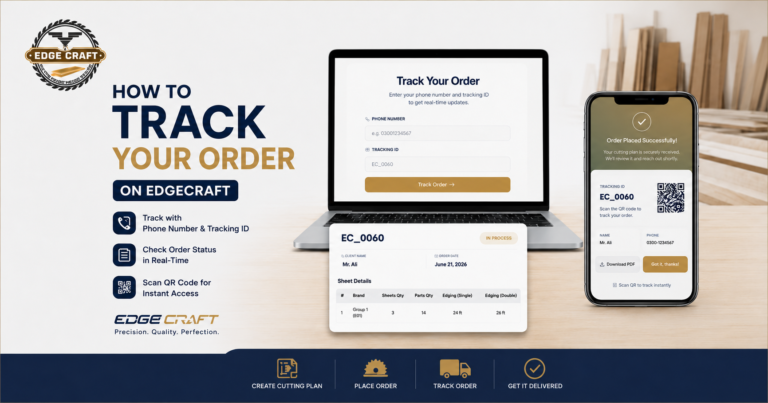
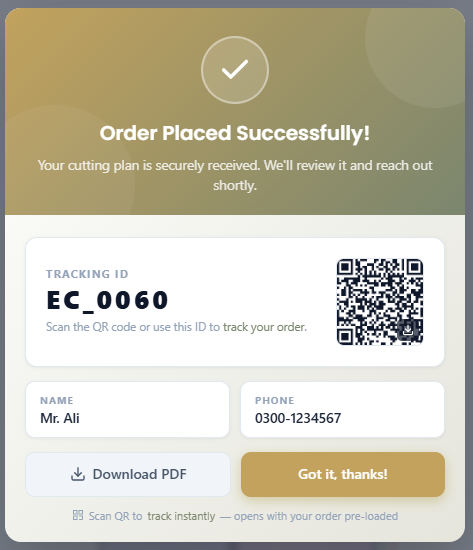
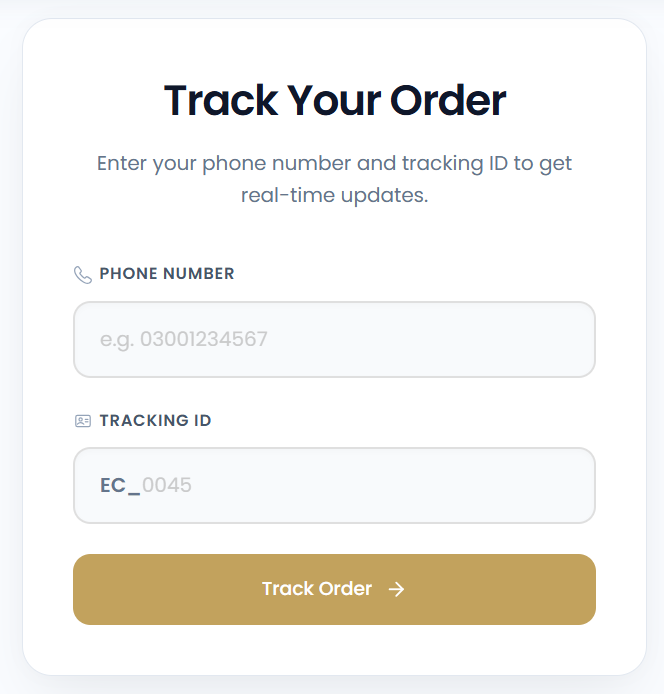
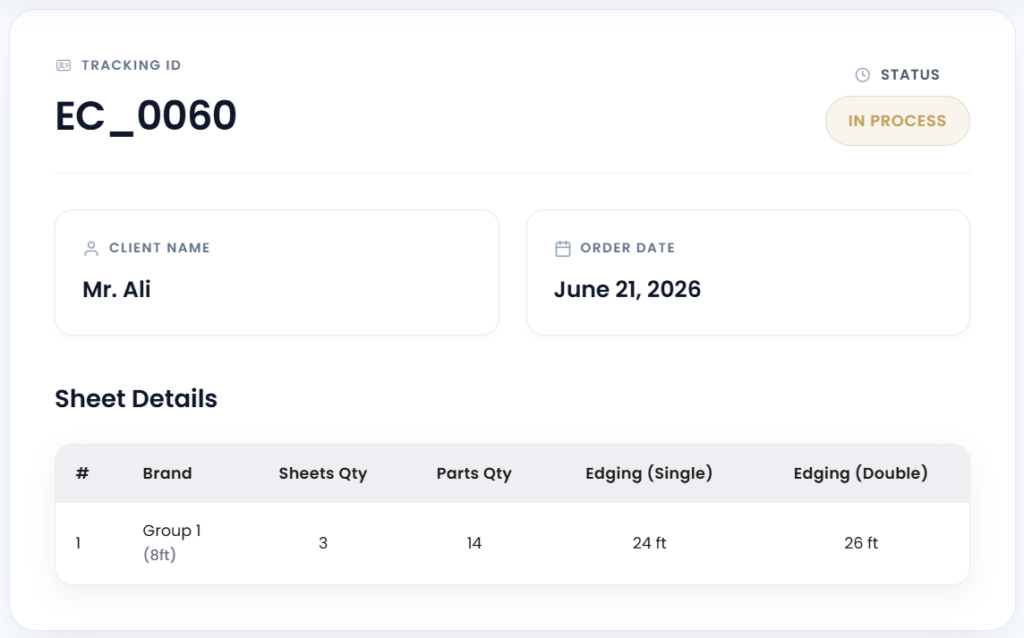
After submitting your cutting order, Edge Craft provides an order reference that can be used to follow up on the job. Customers can use the Track Order page to check their cutting plan or production status with the provided tracking ID or QR code.
This is useful for customers, workshop teams and project coordinators because the cutting plan, order details and tracking reference stay connected in one workflow.
From Cutlist Optimizer to Sheet Cutting Service
Once your cutting plan is ready, the next step is production. Edge Craft connects the online cutlist optimizer tool with practical workshop services, so you can move from digital planning to sheet cutting, edging and order processing without preparing everything again manually.
If your project includes MDF, plywood, laminated boards, wardrobes, kitchens, shelves or cabinet panels, you can use the generated cutting list and PDF layout as a clear reference for sheet cutting. If the parts need finishing, you can also plan edge banding requirements before sending the job for review.
Use the Cutting Plan Tool to prepare your layout, then continue with Edge Craft’s sheet cutting services or edge banding services according to your project needs.
What is included in the Edge Craft Cutting Plan PDF?
The exported PDF gives you a clean production-ready cutting document. It can include the client reference, measurement unit, total sheets, total parts, cutting list, edge banding summary, blade thickness, edge offset and optimized sheet layouts.
This makes it useful for workshops, carpenters, cabinet makers, architects, interior designers, and end customers because everyone can review the same cutting plan before production begins. Instead of sharing rough notes or manual measurements, you can share a structured PDF cut list with sheet layouts and part dimensions.
Why Edge Craft Cutting Plan is useful
The main advantage of Edge Craft Cutting Plan is that it connects planning, layout review, PDF documentation, and job submission in one workflow. Instead of manually calculating sheets, sketching rough cut lists, and then explaining everything separately to a cutting vendor, the tool helps you organize the job in a more professional structure from the beginning. Edge Craft also positions the tool alongside its sheet cutting, edging, and CNC services, which means the planning flow naturally connects to real production support.
For furniture makers, interior contractors, and workshop teams, that can mean fewer misunderstandings, cleaner documentation, and faster processing.
Final thoughts
If you want a better way to prepare MDF or plywood jobs, Edge Craft Cutting Plan is a practical starting point. Set your unit, add your parts, apply the right cutting options, calculate the layout, review the statistics, export the PDF, and then send the order when you are ready. That workflow matches the real structure of the tool already live on Edge Craft, and it is the best way to get consistent results from both planning and production.
Have a Cutting List?
Start Optimizing
For customers in Rawalpindi and Islamabad, this workflow is especially helpful because the same cutting plan can be used to request sheet cutting, edge banding and workshop review from Edge Craft. Instead of sending rough measurements on WhatsApp, you can share a structured and organized cutting plan with part sizes, quantities, edging details and optimized sheet layouts.
FAQs
What is a cutlist optimizer?
A cutlist optimizer is a tool that takes your required panel sizes and arranges them on full sheets to reduce waste and improve cutting efficiency. It is commonly used for MDF, plywood, laminated boards, wardrobes, kitchens and furniture production.
Is Edge Craft Cutting Plan a cutlist optimizer?
Yes. Edge Craft Cutting Plan works as a cutlist optimizer and sheet cutting optimizer. You can add your panel sizes, sheet size, blade thickness, edge offset, grain settings and edging details, then calculate an optimized cutting layout.
Can I use Edge Craft Cutting Plan for MDF and plywood?
Yes. You can use it for MDF, plywood, laminated sheets and other furniture board materials. It is useful for kitchens, wardrobes, cabinets, doors, shelves and custom furniture parts.
Can I export the cut list as a PDF?
Yes. After calculating the layout, you can export the cutting plan as a PDF. The PDF can include the cutting list, sheet layouts, part dimensions, edge banding details and summary information.
Can Edge Craft cut the sheets after I create the plan?
Yes. After preparing your cutting plan, you can send your order to Edge Craft for review. The team can check the details, confirm requirements and process sheet cutting or edging as needed.
Can I track my cutting order after submitting it?
Yes. After submitting your cutting plan to Edge Craft, you can use the Track Order page to check your order using the tracking ID or QR code provided after submission.